Neovim Isn't Actually That Scary
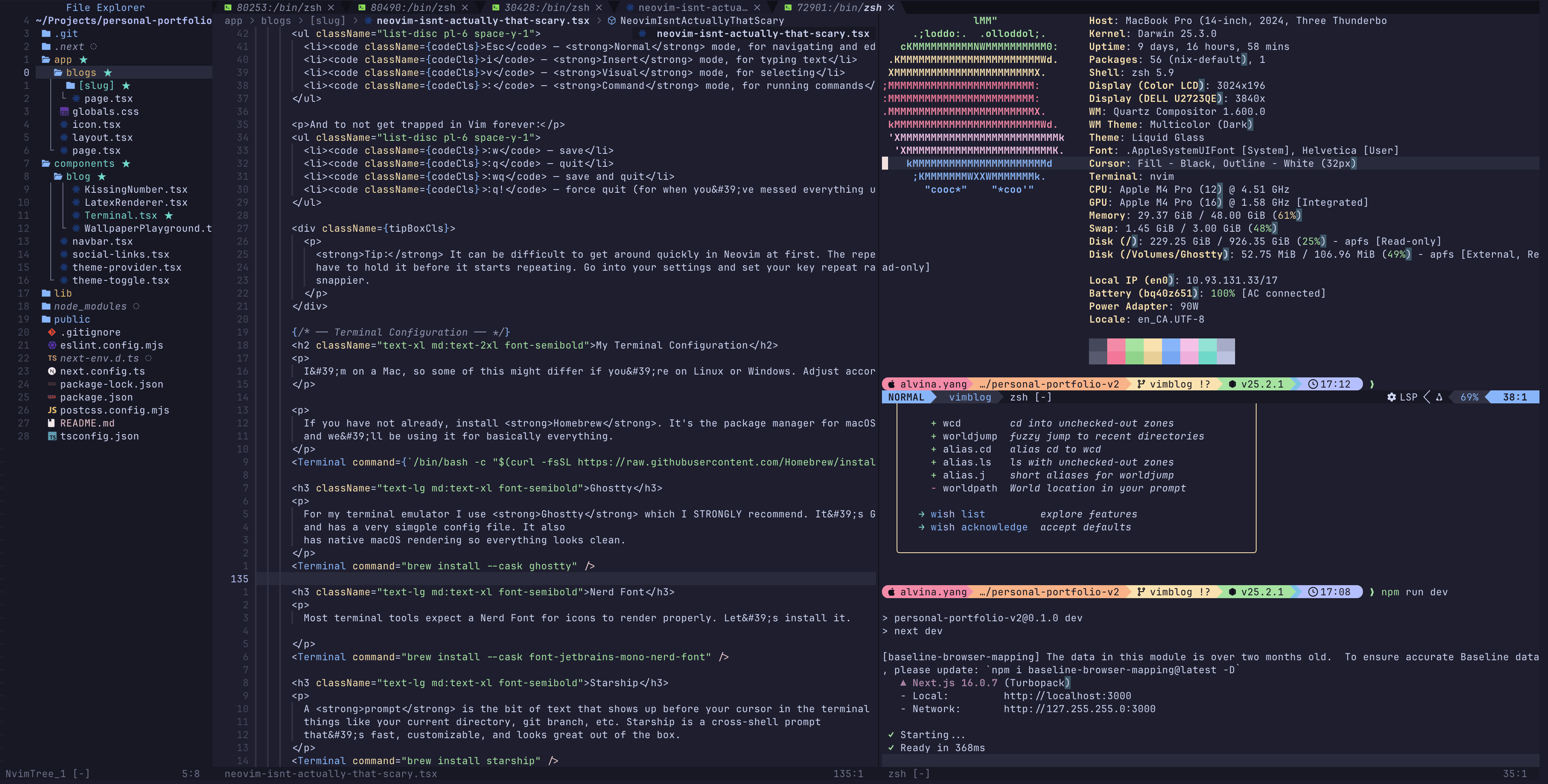
2026-03-06 · 4 min readWe all love IDEs, they're easy to use and just work out of the box. I was an avid VS Code user myself until one day I got bored enough to reconfigure everything and switch over to NeoVim. And honestly? It's actually kind of fun.
Preamble
If you're not already familiar with Vim, you should definitely get acquainted before diving in. Open up your terminal and run:
~ $ vimtutorThis launches a built-in interactive tutorial that walks you through all the basics. I'd recommend running through it a few times until the motions start to feel natural.
If you're only here to make your terminal look better, feel free to skip ahead, this part is just for those configuring Neovim. But if you're too lazy to do vimtutor, I get it. Here's a quick crash course.
Vim is modal, so instead of just typing into a file, you switch between modes:
EscNormal mode, for navigating and editingiInsert mode, for typing textvVisual mode, for selecting:Command mode, for running commands
And to not get trapped in Vim forever:
:wsave:qquit:wqsave and quit:q!force quit (for when you've messed everything up)
Tip: It can be difficult to get around quickly in Neovim at first. The repeat rate controls how fast a held key fires, and the delay controls how long you have to hold it before it starts repeating. Go into your settings and set your key repeat rate to fast and delay until repeat to short. This makes moving around in Neovim feel way snappier.
My Terminal Configuration
I'm on a Mac, so some of this might differ if you're on Linux or Windows. Adjust accordingly.
If you have not already, install Homebrew. It's the package manager for macOS and we'll be using it for basically everything.
~ $ /bin/bash -c "$(curl -fsSL https://raw.githubusercontent.com/Homebrew/install/HEAD/install.sh)"Ghostty
For my terminal emulator I use Ghostty which I STRONGLY recommend. It's GPU-accelerated, very fast, and has a very simgple config file. It also has native macOS rendering so everything looks clean.
~ $ brew install --cask ghosttyNerd Font
Most terminal tools expect a Nerd Font for icons to render properly. Let's install it.
~ $ brew install --cask font-jetbrains-mono-nerd-fontStarship
A prompt is the bit of text that shows up before your cursor in the terminal, things like your current directory, git branch, etc. Starship is a cross-shell prompt that's fast, customizable, and looks great out of the box.
~ $ brew install starshipGhostty Config
Open Ghostty and hit ⌘ + , to open the config file. Paste this in:
# Theme
theme = Catppuccin Mocha

# Font
font-family = JetBrainsMono Nerd Font
font-size = 14

# Window
macos-titlebar-style = transparent
window-padding-x = 8
window-padding-y = 4
background-opacity = 0.95
background-blur-radius = 20

# Cursor
cursor-style = bar
cursor-style-blink = true

# Scrollback
scrollback-limit = 10000

# Shell integration
shell-integration = zsh

# Mouse
mouse-hide-while-typing = true

# Clipboard
clipboard-read = allow
clipboard-write = allow
copy-on-select = true
Quick breakdown:
- Theme Catppuccin Mocha, my personal favorite. Warm, easy on the eyes.
- Font JetBrains Mono Nerd Font at size 14. The Nerd Font variant gives us all the icons.
- Window transparent titlebar, slight padding, and a subtle blur + transparency.
- Cursor bar style with blink.
- Scrollback 10k lines so you can scroll way back.
- Shell integration hooks into zsh for nicer prompt/scrollback behavior.
- Mouse & clipboard hide cursor while typing, and copy-on-select so you can highlight and paste without extra steps.
Shell Tools
These are the CLI tools that make the terminal actually enjoyable to use. Install them all in one go:
~ $ brew install starship zoxide fzf thefuck eza bat git-delta zsh-autosuggestions zsh-syntax-highlightingNow we need to add some config to your ~/.zshrc. If you're wondering, Zsh is the shell that runs in your terminal (it's been the default on macOS since Catalina), and .zshrc is its config file.
Add this to yours:
# Starship prompt
eval "$(starship init zsh)"

# Zoxide (smart cd)
eval "$(zoxide init zsh)"

# fzf keybindings & completion (Ctrl+R history, Ctrl+T files)
source <(fzf --zsh)

# thefuck (corrects previous command)
eval $(thefuck --alias)

# Zsh plugins
source $(brew --prefix)/share/zsh-autosuggestions/zsh-autosuggestions.zsh
source $(brew --prefix)/share/zsh-syntax-highlighting/zsh-syntax-highlighting.zsh

# Better CLI aliases
alias ls="eza --icons --git"
alias ll="eza --icons --git -la"
alias la="eza --icons --git -a"
alias lt="eza --icons --git --tree --level=2"
alias cat="bat"
alias cd="z"
What each of these does:
- Starship the pretty prompt we installed earlier.
- Zoxide a smarter
cdthat learns your most visited directories. Just typez projectsand it knows where to go. - fzf fuzzy finder.
Ctrl+Rfor fuzzy history search,Ctrl+Tfor file search. Life changing. - thefuck when you mistype a command, just type
fuckand it corrects it. Yes, really. - eza
lsbut with icons, colors, and git status. - bat
catbut with syntax highlighting and line numbers. - git-delta makes your git diffs actually readable with side-by-side view and syntax highlighting.
- zsh-autosuggestions suggests commands as you type based on your history. Accept with the right arrow key.
- zsh-syntax-highlighting colors your commands as you type so you can spot typos before hitting enter.
Starship Theme
We've already set Ghostty to Catppuccin Mocha, so let's match the prompt. One command:
~ $ starship preset catppuccin-powerline -o ~/.config/starship.tomlAnd that's it, your terminal should be looking all pretty now.

If you're only here for the terminal setup, you can stop here. But, if you want to turn Neovim into a full development environment, keep reading.
My Neovim Setup
Neovim is fast, runs entirely in your terminal, and is configured with Lua. The plugin ecosystem is excellent, and once you get everything set up, it genuinely feels like a better IDE than most IDEs.
All of your Neovim config lives in ~/.config/nvim/. Let's go through the entire set up.
Install Neovim
First, install Neovim itself plus a few dependencies that plugins will need:
~ $ brew install neovim~ $ brew install ripgrep fd lazygit btop node npmripgrep and fd power Telescope's file search. lazygit is a terminal Git UI. btop is a process monitor. node/npm are needed by some LSP servers and plugins.
Directory Structure
Create this folder layout inside ~/.config/nvim/:
~/.config/nvim/
├── init.lua
└── lua/
    ├── config/
    │   ├── keymaps.lua
    │   └── diagnostics.lua
    └── plugins/
        ├── colorscheme.lua
        ├── nvim-tree.lua
        ├── telescope.lua
        ├── treesitter.lua
        ├── editor.lua
        ├── lsp.lua
        ├── lualine.lua
        ├── ui.lua
        ├── git.lua
        ├── alpha.lua
        ├── session.lua
        └── tools.lua
init.lua is the entry point. Neovim reads it on startup. Everything under lua/plugins/ gets auto-discovered by lazy.nvim (the plugin manager), and lua/config/ holds our keymaps and diagnostic settings.
init.lua, The Entry Point
-- Leader key (must be set before lazy.nvim)
vim.g.mapleader = " "

-- Basic options
vim.opt.termguicolors = true
vim.opt.guicursor = "n-v-c-sm:block-blinkwait300-blinkon200-blinkoff150,i-ci-ve:ver25-blinkwait300-blinkon200-blinkoff150,r-cr-o:hor20-blinkwait300-blinkon200-blinkoff150"
vim.opt.number = true
vim.opt.relativenumber = true
vim.opt.timeoutlen = 300
vim.opt.tabstop = 2
vim.opt.shiftwidth = 2
vim.opt.softtabstop = 2
vim.opt.expandtab = true
vim.opt.smartindent = true
vim.opt.wrap = false
vim.opt.scrolloff = 8
vim.opt.signcolumn = "yes"
vim.opt.cursorline = true

-- Autosave when leaving insert mode or losing focus
vim.api.nvim_create_autocmd({ "InsertLeave", "FocusLost", "BufLeave" }, {
  callback = function()
    local buf = vim.api.nvim_get_current_buf()
    if vim.bo[buf].modified and vim.bo[buf].modifiable and vim.bo[buf].buftype == "" and vim.fn.expand("%") ~= "" then
      vim.cmd("silent! write")
    end
  end,
})

-- Disable netrw (using nvim-tree instead)
vim.g.loaded_netrw = 1
vim.g.loaded_netrwPlugin = 1

-- Git-blame: show in statusline, not inline
vim.g.gitblame_display_virtual_text = 0

-- Bootstrap lazy.nvim
local lazypath = vim.fn.stdpath("data") .. "/lazy/lazy.nvim"
if not vim.loop.fs_stat(lazypath) then
  vim.fn.system({
    "git", "clone", "--filter=blob:none",
    "https://github.com/folke/lazy.nvim.git",
    "--branch=stable",
    lazypath,
  })
end
vim.opt.rtp:prepend(lazypath)

-- Load plugins from lua/plugins/
require("lazy").setup("plugins")

-- Diagnostics
require("config.diagnostics")

-- Keymaps
require("config.keymaps")
What's happening here:
- Leader key set to
Space. This is the prefix for most custom keybindings. Must be set before loading plugins. - Basic options line numbers, relative numbers, 2-space tabs, smart indent, no line wrapping, always-visible sign column, cursor line highlight.
- Autosave automatically writes the file when you leave insert mode or switch away. You no longer have to write
:wevery 5 seconds. - lazy.nvim bootstrap clones the plugin manager if it's not already installed, then loads all plugin files from
lua/plugins/.
1. Colorscheme
First things first, let's make it look good. Catppuccin Mocha is a warm, low-contrast theme with great plugin support.
return {
  {
    "catppuccin/nvim",
    name = "catppuccin",
    lazy = false,
    priority = 1000,
    config = function()
      require("catppuccin").setup({
        flavour = "mocha",
        integrations = {
          alpha = true,
          gitsigns = true,
          nvimtree = true,
          telescope = { enabled = true },
          treesitter = true,
          notify = true,
          noice = true,
          which_key = true,
          flash = true,
          indent_blankline = { enabled = true },
          native_lsp = {
            enabled = true,
            underlines = {
              errors = { "undercurl" },
              warnings = { "undercurl" },
            },
          },
        },
      })
      vim.cmd("colorscheme catppuccin-mocha")
    end,
  },
  { "nvim-tree/nvim-web-devicons", opts = {} },
  { "folke/tokyonight.nvim", lazy = true, priority = 1000 },
  { "rebelot/kanagawa.nvim", lazy = true, priority = 1000 },
  { "EdenEast/nightfox.nvim", lazy = true, priority = 1000 },
}
The integrations table tells Catppuccin to apply matching colors to all the other plugins we'll install. We also keep a few alternative themes (tokyonight, kanagawa, nightfox) available but lazy-loaded in case you want to switch. nvim-web-devicons provides the file type icons used across the UI.
2. File Explorer (nvim-tree)
You need a way to see your project files. nvim-tree gives you a sidebar file explorer with git status indicators and icons.
return {
  "nvim-tree/nvim-tree.lua",
  dependencies = "nvim-tree/nvim-web-devicons",
  lazy = false,
  keys = {
    { "<leader>e", "<cmd>NvimTreeToggle<cr>", desc = "Toggle file explorer" },
  },
  config = function()
    -- Close any conflicting NvimTree buffers before setup
    for _, buf in ipairs(vim.api.nvim_list_bufs()) do
      local name = vim.api.nvim_buf_get_name(buf)
      if name:match("NvimTree_") then
        vim.api.nvim_buf_delete(buf, { force = true })
      end
    end

    require("nvim-tree").setup({
      view = { width = 35, relativenumber = true },
      renderer = {
        highlight_git = "name",
        indent_markers = { enable = true },
        icons = {
          git_placement = "after",
          show = { git = true },
          glyphs = {
            folder = { arrow_closed = "", arrow_open = "" },
            git = {
              unstaged = "", staged = "", unmerged = "",
              renamed = "➜", untracked = "★", deleted = "", ignored = "◌",
            },
          },
        },
      },
      actions = { open_file = { window_picker = { enable = false } } },
      filters = { custom = { ".DS_Store" } },
      git = { ignore = false },
    })

    -- Git colors in NvimTree
    vim.api.nvim_set_hl(0, "NvimTreeGitIgnored", { fg = "#6b727f", italic = true })
    vim.api.nvim_set_hl(0, "NvimTreeGitNew", { fg = "#73daca" })
    vim.api.nvim_set_hl(0, "NvimTreeGitDirty", { fg = "#e0af68" })
    vim.api.nvim_set_hl(0, "NvimTreeGitStaged", { fg = "#9ece6a" })
    vim.api.nvim_set_hl(0, "NvimTreeGitDeleted", { fg = "#f7768e" })
  end,
}
Toggle it with Space + e. The tree shows git status with colored icons (green for new, yellow for modified, red for deleted). Relative line numbers let you jump to files with Vim motions.
3. Telescope (Fuzzy Finder)
Telescope is probably the plugin you'll use most. It's a fuzzy finder for files, text, git commits, and basically anything.
return {
  "nvim-telescope/telescope.nvim",
  dependencies = {
    "nvim-lua/plenary.nvim",
    { "nvim-telescope/telescope-fzf-native.nvim", build = "make" },
    "nvim-tree/nvim-web-devicons",
    "folke/todo-comments.nvim",
    "ahmedkhalf/project.nvim",
  },
  config = function()
    local telescope = require("telescope")
    local actions = require("telescope.actions")

    telescope.setup({
      defaults = {
        path_display = { "smart" },
        mappings = {
          i = {
            ["<C-k>"] = actions.move_selection_previous,
            ["<C-j>"] = actions.move_selection_next,
            ["<C-q>"] = actions.send_selected_to_qflist + actions.open_qflist,
          },
        },
      },
    })

    telescope.load_extension("fzf")
    telescope.load_extension("projects")

    vim.keymap.set("n", "<leader>fp", "<cmd>Telescope projects<cr>", { desc = "Find projects" })
    vim.keymap.set("n", "<leader>ff", "<cmd>Telescope find_files<cr>", { desc = "Fuzzy find files in cwd" })
    vim.keymap.set("n", "<leader>fr", "<cmd>Telescope oldfiles<cr>", { desc = "Fuzzy find recent files" })
    vim.keymap.set("n", "<leader>fg", "<cmd>Telescope live_grep<cr>", { desc = "Find string in cwd" })
    vim.keymap.set("n", "<leader>fc", "<cmd>Telescope grep_string<cr>", { desc = "Find string under cursor in cwd" })
    vim.keymap.set("n", "<leader>ft", "<cmd>TodoTelescope<cr>", { desc = "Find todos" })
    vim.keymap.set("n", "<leader>gc", "<cmd>Telescope git_commits<cr>", { desc = "Git commits" })
    vim.keymap.set("n", "<leader>gb", "<cmd>Telescope git_branches<cr>", { desc = "Git branches" })
  end,
}
Key bindings:
Space fffind filesSpace fglive grep (search text across all files)Space frrecent filesSpace fcsearch for word under cursorSpace ftfind TODO commentsSpace fpswitch between projectsSpace gcbrowse git commitsSpace gbbrowse git branches
The telescope-fzf-native extension makes the fuzzy matching significantly faster.
4. Treesitter (Syntax Highlighting)
Treesitter parses your code into an AST (abstract syntax tree) which gives you much better syntax highlighting than regex-based highlighting.
return {
  "nvim-treesitter/nvim-treesitter",
  event = { "BufReadPre", "BufNewFile" },
  build = ":TSUpdate",
  dependencies = { "windwp/nvim-ts-autotag" },
  config = function()
    local ok, configs = pcall(require, "nvim-treesitter.configs")
    if ok then
      configs.setup({
        highlight = { enable = true },
        indent = { enable = true },
        autotag = { enable = true },
        ensure_installed = {
          "json", "javascript", "typescript", "tsx", "yaml", "html", "css",
          "markdown", "markdown_inline", "bash", "lua", "vim", "vimdoc",
          "python", "ruby", "toml", "c", "query", "dockerfile", "gitignore",
        },
        incremental_selection = {
          enable = true,
          keymaps = {
            init_selection = "<C-space>",
            node_incremental = "<C-space>",
            scope_incremental = false,
            node_decremental = "<bs>",
          },
        },
      })
    else
      require("nvim-treesitter").setup({
        ensure_installed = {
          "json", "javascript", "typescript", "tsx", "yaml", "html", "css",
          "markdown", "markdown_inline", "bash", "lua", "vim", "vimdoc",
          "python", "ruby", "toml", "c", "query", "dockerfile", "gitignore",
        },
        auto_install = true,
      })
    end
  end,
}
It auto-installs parsers for all the languages listed. The incremental_selection feature lets you expand your selection by AST node with Ctrl+Space, press it repeatedly to select larger and larger chunks of code. The autotag integration auto-closes and auto-renames HTML/JSX tags.
5. Editor Enhancements
These are the quality-of-life editing plugins that make writing code feel smooth.
return {
  -- Autopairs
  {
    "windwp/nvim-autopairs",
    event = "InsertEnter",
    config = function()
      require("nvim-autopairs").setup({})
    end,
  },

  -- Color highlighter
  {
    "brenoprata10/nvim-highlight-colors",
    event = "BufReadPre",
    config = function()
      require("nvim-highlight-colors").setup({
        render = "background",
        enable_named_colors = true,
        enable_tailwind = true,
      })
    end,
  },

  -- Comments (with tsx/jsx/svelte/html support)
  {
    "numToStr/Comment.nvim",
    event = { "BufReadPre", "BufNewFile" },
    dependencies = { "JoosepAlviste/nvim-ts-context-commentstring" },
    config = function()
      local ts_context_commentstring = require("ts_context_commentstring.integrations.comment_nvim")
      require("Comment").setup({
        pre_hook = ts_context_commentstring.create_pre_hook(),
      })
    end,
  },

  -- Todo comments
  {
    "folke/todo-comments.nvim",
    event = { "BufReadPre", "BufNewFile" },
    dependencies = { "nvim-lua/plenary.nvim" },
    config = function()
      local todo_comments = require("todo-comments")
      vim.keymap.set("n", "]t", function() todo_comments.jump_next() end, { desc = "Next todo comment" })
      vim.keymap.set("n", "[t", function() todo_comments.jump_prev() end, { desc = "Previous todo comment" })
      todo_comments.setup()
    end,
  },

  -- Surround
  {
    "kylechui/nvim-surround",
    event = "BufReadPre",
    config = function()
      require("nvim-surround").setup()
    end,
  },

  -- Indent guides
  {
    "lukas-reineke/indent-blankline.nvim",
    main = "ibl",
    event = "BufReadPost",
    config = function()
      require("ibl").setup()
    end,
  },

  -- Flash: jump anywhere on screen
  {
    "folke/flash.nvim",
    event = "VeryLazy",
    keys = {
      { "s", function() require("flash").jump() end, mode = { "n", "x", "o" }, desc = "Flash jump" },
      { "S", function() require("flash").treesitter() end, mode = { "n", "x", "o" }, desc = "Flash treesitter select" },
    },
    config = function()
      require("flash").setup()
    end,
  },

  -- Illuminate: highlight word under cursor
  {
    "RRethy/vim-illuminate",
    event = "BufReadPost",
    config = function()
      require("illuminate").configure({
        delay = 200,
        filetypes_denylist = { "NvimTree", "alpha", "TelescopePrompt" },
      })
      vim.keymap.set("n", "]]", function() require("illuminate").goto_next_reference() end, { desc = "Next reference" })
      vim.keymap.set("n", "[[", function() require("illuminate").goto_prev_reference() end, { desc = "Previous reference" })
    end,
  },
}
What each plugin does:
- nvim-autopairs automatically closes brackets, quotes, etc.
- nvim-highlight-colors shows color previews inline for hex codes and Tailwind classes.
- Comment.nvim toggle comments with
gcc(line) orgc(selection). Handles JSX/TSX correctly. - todo-comments highlights TODO, FIXME, HACK, etc. in your code with distinct colors. Jump between them with
]t/[t. - nvim-surround add/change/delete surrounding characters.
ysiw"to surround a word with quotes,cs"'to change quotes,ds"to delete them. - indent-blankline shows indent guide lines so you can visually track scope.
- flash.nvim press
sthen type a few characters to jump anywhere on screen instantly. PressSto select by treesitter node. - vim-illuminate highlights all occurrences of the word under your cursor.
]]/[[to jump between them.
6. LSP (Language Server Protocol)
This is the big one. LSP is what gives you go-to-definition, autocomplete, inline errors, rename-symbol, and code actions, basically everything that makes an editor feel like an IDE.
return {
  -- LSP
  {
    "neovim/nvim-lspconfig",
    event = "BufReadPre",
    dependencies = {
      "williamboman/mason.nvim",
      "williamboman/mason-lspconfig.nvim",
    },
    config = function()
      require("mason").setup()
      local lspconfig = require("lspconfig")
      local on_attach = function(_, bufnr)
        local map = function(keys, func, desc)
          vim.keymap.set("n", keys, func, { buffer = bufnr, desc = desc })
        end
        map("gd", vim.lsp.buf.definition, "Go to definition")
        map("gr", vim.lsp.buf.references, "References")
        map("K", vim.lsp.buf.hover, "Hover docs")
        map("<leader>rn", vim.lsp.buf.rename, "Rename symbol")
        map("[d", vim.diagnostic.goto_prev, "Previous diagnostic")
        map("]d", vim.diagnostic.goto_next, "Next diagnostic")
        map("<leader>d", vim.diagnostic.open_float, "Show diagnostic message")
        map("<leader>q", vim.diagnostic.setloclist, "Diagnostic list")
        map("<leader>ca", vim.lsp.buf.code_action, "Code action")
      end

      require("mason-lspconfig").setup({
        ensure_installed = { "lua_ls", "pyright" },
        handlers = {
          function(server_name)
            lspconfig[server_name].setup({ on_attach = on_attach })
          end,
          ["lua_ls"] = function()
            lspconfig.lua_ls.setup({
              on_attach = on_attach,
              settings = { Lua = { diagnostics = { globals = { "vim" } } } },
            })
          end,
          ["pyright"] = function()
            lspconfig.pyright.setup({ on_attach = on_attach })
          end,
        },
      })
    end,
  },

  -- Autocompletion
  {
    "hrsh7th/nvim-cmp",
    event = "InsertEnter",
    dependencies = {
      "hrsh7th/cmp-nvim-lsp",
      "hrsh7th/cmp-buffer",
      "hrsh7th/cmp-path",
      "L3MON4D3/LuaSnip",
      "saadparwaiz1/cmp_luasnip",
    },
    config = function()
      local cmp = require("cmp")
      local luasnip = require("luasnip")
      cmp.setup({
        snippet = {
          expand = function(args) luasnip.lsp_expand(args.body) end,
        },
        mapping = cmp.mapping.preset.insert({
          ["<C-b>"] = cmp.mapping.scroll_docs(-4),
          ["<C-f>"] = cmp.mapping.scroll_docs(4),
          ["<C-Space>"] = cmp.mapping.complete(),
          ["<C-e>"] = cmp.mapping.abort(),
          ["<CR>"] = cmp.mapping.confirm({ select = true }),
          ["<Tab>"] = cmp.mapping(function(fallback)
            if cmp.visible() then
              cmp.select_next_item()
            elseif luasnip.expand_or_jumpable() then
              luasnip.expand_or_jump()
            else
              fallback()
            end
          end, { "i", "s" }),
          ["<S-Tab>"] = cmp.mapping(function(fallback)
            if cmp.visible() then
              cmp.select_prev_item()
            elseif luasnip.jumpable(-1) then
              luasnip.jump(-1)
            else
              fallback()
            end
          end, { "i", "s" }),
        }),
        sources = cmp.config.sources({
          { name = "nvim_lsp" },
          { name = "luasnip" },
        }, {
          { name = "buffer" },
          { name = "path" },
        }),
      })
    end,
  },

  -- Trouble: diagnostic panel
  {
    "folke/trouble.nvim",
    dependencies = { "nvim-tree/nvim-web-devicons" },
    cmd = "Trouble",
    keys = {
      { "<leader>xx", "<cmd>Trouble diagnostics toggle<cr>", desc = "Diagnostics (Trouble)" },
      { "<leader>xd", "<cmd>Trouble diagnostics toggle filter.buf=0<cr>", desc = "Buffer diagnostics (Trouble)" },
    },
    config = function()
      require("trouble").setup()
    end,
  },

  -- LSP progress in statusline
  {
    "linrongbin16/lsp-progress.nvim",
    event = "BufReadPre",
    config = function()
      require("lsp-progress").setup()
    end,
  },
}
The setup uses three plugins working together:
- mason.nvim installs and manages LSP servers automatically. Run
:Masonto see what's available. - mason-lspconfig bridges Mason with nvim-lspconfig so servers are configured automatically. It ensures
lua_lsandpyrightare always installed, plus a default handler for any others you add. - nvim-cmp the autocompletion engine. It pulls suggestions from the LSP, the current buffer, file paths, and snippets. Use
Tab/Shift+Tabto cycle through suggestions,Enterto confirm. - Trouble a pretty diagnostics panel. Open it with
Space xxto see all errors/warnings across your project.
LSP keybindings:
gdgo to definitiongrfind referencesKhover documentationSpace rnrename symbolSpace cacode actionSpace dshow diagnostic message[d/]djump between diagnostics
Tip: To add support for more languages, just install the LSP server through Mason (:Mason). The default handler will configure it automatically.
7. Statusline (Lualine)
Lualine gives you a nice statusline at the bottom showing your current mode, git branch, diagnostics, filename, file type, and more.
return {
  "nvim-lualine/lualine.nvim",
  dependencies = { "nvim-tree/nvim-web-devicons" },
  event = "VimEnter",
  config = function()
    local lazy_status = require("lazy.status")

    require("lualine").setup({
      options = { theme = "catppuccin" },
      sections = {
        lualine_a = { "mode" },
        lualine_b = {
          {
            "branch",
            icon = "",
            fmt = function(str)
              if str == "" or str == nil or str == ".invalid" or str:match("^%.") then
                local handle = io.popen("git rev-parse --abbrev-ref HEAD 2>/dev/null")
                if handle then
                  local result = handle:read("*a"):gsub("%s+$", "")
                  handle:close()
                  if result ~= "" then return result end
                end
              end
              return str
            end,
          },
          "diff",
          "diagnostics",
        },
        lualine_c = { "filename" },
        lualine_x = {
          {
            function() return require("lsp-progress").progress() end,
          },
          {
            lazy_status.updates,
            cond = lazy_status.has_updates,
            color = { fg = "#ff9e64" },
          },
          { "encoding" },
          { "fileformat" },
          { "filetype" },
        },
        lualine_y = { "progress" },
        lualine_z = { "location" },
      },
    })
  end,
}
It uses the Catppuccin theme to match everything else. The right side shows LSP progress (so you can see when a server is loading) and lazy.nvim update notifications.
8. UI Enhancements
These plugins make the overall Neovim UI feel modern and polished.
return {
  -- Bufferline (tabs)
  {
    "akinsho/bufferline.nvim",
    version = "*",
    dependencies = { "nvim-tree/nvim-web-devicons" },
    event = "VimEnter",
    config = function()
      require("bufferline").setup({
        options = {
          mode = "buffers",
          diagnostics = "nvim_lsp",
          offsets = {
            { filetype = "NvimTree", text = "File Explorer", highlight = "Directory" },
          },
          show_close_icon = false,
          separator_style = "slant",
        },
      })
    end,
  },

  -- Noice: modern command line and popups
  {
    "folke/noice.nvim",
    event = "VeryLazy",
    dependencies = { "MunifTanjim/nui.nvim", "rcarriga/nvim-notify" },
    config = function()
      require("noice").setup({
        lsp = {
          override = {
            ["vim.lsp.util.convert_input_to_markdown_lines"] = true,
            ["vim.lsp.util.stylize_markdown"] = true,
            ["cmp.entry.get_documentation"] = true,
          },
        },
        presets = {
          bottom_search = true,
          command_palette = true,
          long_message_to_split = true,
          inc_rename = false,
          lsp_doc_border = false,
        },
      })
      vim.keymap.set("n", "<leader>nd", "<cmd>NoiceDismiss<cr>", { desc = "Dismiss notifications" })
      vim.keymap.set("n", "<leader>nm", "<cmd>Noice history<cr>", { desc = "Message history" })
      vim.keymap.set("n", "<leader>nl", "<cmd>Noice last<cr>", { desc = "Last message" })
    end,
  },

  -- Notifications
  {
    "rcarriga/nvim-notify",
    config = function()
      local notify = require("notify")
      notify.setup({
        background_colour = "#000000",
        stages = "fade_in_slide_out",
        timeout = 3000,
        level = vim.log.levels.ERROR,
        max_height = function() return math.floor(vim.o.lines * 0.75) end,
        max_width = function() return math.floor(vim.o.columns * 0.75) end,
      })
      vim.notify = notify
      require("telescope").load_extension("notify")
      vim.keymap.set("n", "<leader>nn", "<cmd>Telescope notify<cr>", { desc = "Search notifications" })
    end,
  },

  -- Breadcrumbs (LSP-powered code location bar)
  {
    "SmiteshP/nvim-navic",
    lazy = true,
    opts = { lsp = { auto_attach = true }, highlight = true },
  },
  {
    "utilyre/barbecue.nvim",
    name = "barbecue",
    version = "*",
    dependencies = { "SmiteshP/nvim-navic", "nvim-tree/nvim-web-devicons" },
    event = "LspAttach",
    opts = {},
  },

  -- Incline: floating filename labels on splits
  {
    "b0o/incline.nvim",
    event = "BufReadPre",
    config = function()
      require("incline").setup({
        window = {
          padding = 0,
          margin = { horizontal = 0 },
        },
        render = function(props)
          local filename = vim.fn.fnamemodify(vim.api.nvim_buf_get_name(props.buf), ":t")
          if filename == "" then filename = "[No Name]" end
          local ft_icon, ft_color = require("nvim-web-devicons").get_icon_color(filename)
          local modified = vim.bo[props.buf].modified
          return {
            ft_icon and { " ", ft_icon, " ", guifg = ft_color } or "",
            " ",
            { filename, gui = modified and "bold,italic" or "bold" },
            " ",
          }
        end,
      })
    end,
  },

  -- Dressing: prettier input/select dialogs
  {
    "stevearc/dressing.nvim",
    event = "VeryLazy",
    config = function()
      require("dressing").setup()
    end,
  },

  -- Which-key
  {
    "folke/which-key.nvim",
    event = "VeryLazy",
    config = function()
      require("which-key").setup()
    end,
  },
}
What each plugin does:
- bufferline tabs along the top for open buffers. Use
Tab/Shift+Tabto switch between them,Space cto close. - noice.nvim replaces the command line and notification popups with modern floating windows. Press
Space ndto dismiss notifications. - nvim-notify beautiful toast-style notifications with fade animations.
- barbecue + nvim-navic breadcrumbs bar at the top showing your current code location (e.g. file → class → method).
- incline floating filename labels on each split so you always know which file you're looking at.
- dressing.nvim makes input dialogs (like rename) and select menus look nicer.
- which-key shows a popup of available keybindings when you start a key sequence. Press
Spaceand wait to see all your options.
9. Git Integration
Full Git workflow without leaving Neovim.
return {
  -- Git blame
  {
    "f-person/git-blame.nvim",
    lazy = false,
    config = function()
      require("gitblame").setup({ enabled = true })
    end,
  },

  -- LazyGit
  {
    "kdheepak/lazygit.nvim",
    cmd = { "LazyGit", "LazyGitConfig", "LazyGitCurrentFile", "LazyGitFilter", "LazyGitFilterCurrentFile" },
    dependencies = { "nvim-lua/plenary.nvim" },
    keys = {
      { "<leader>lg", "<cmd>LazyGit<cr>", desc = "LazyGit" },
    },
  },

  -- Gitsigns: inline diff markers in the gutter
  {
    "lewis6991/gitsigns.nvim",
    event = "BufReadPre",
    config = function()
      require("gitsigns").setup({
        signs = {
          add = { text = "+" },
          change = { text = "~" },
          delete = { text = "_" },
          topdelete = { text = "‾" },
          changedelete = { text = "~" },
        },
        on_attach = function(bufnr)
          local gs = package.loaded.gitsigns
          local map = function(keys, func, desc)
            vim.keymap.set("n", keys, func, { buffer = bufnr, desc = desc })
          end
          map("]h", gs.next_hunk, "Next hunk")
          map("[h", gs.prev_hunk, "Previous hunk")
          map("<leader>hp", gs.preview_hunk, "Preview hunk")
          map("<leader>hr", gs.reset_hunk, "Reset hunk")
        end,
      })
    end,
  },

  -- Diffview: side-by-side git diff viewer
  {
    "sindrets/diffview.nvim",
    cmd = { "DiffviewOpen", "DiffviewFileHistory" },
    keys = {
      { "<leader>gd", "<cmd>DiffviewOpen<cr>", desc = "Git diff view" },
      { "<leader>gh", "<cmd>DiffviewFileHistory %<cr>", desc = "File git history" },
      { "<leader>gH", "<cmd>DiffviewFileHistory<cr>", desc = "Branch git history" },
      { "<leader>gq", "<cmd>DiffviewClose<cr>", desc = "Close diff view" },
    },
    config = function()
      require("diffview").setup()
    end,
  },
}- git-blame shows who last modified each line in the statusline.
- lazygit open a full Git TUI with
Space lg. Stage, commit, push, rebase, all from a visual interface. - gitsigns gutter markers showing added/changed/deleted lines. Jump between hunks with
]h/[h, preview withSpace hp. - diffview side-by-side diff viewer. Open with
Space gd, view file history withSpace gh.
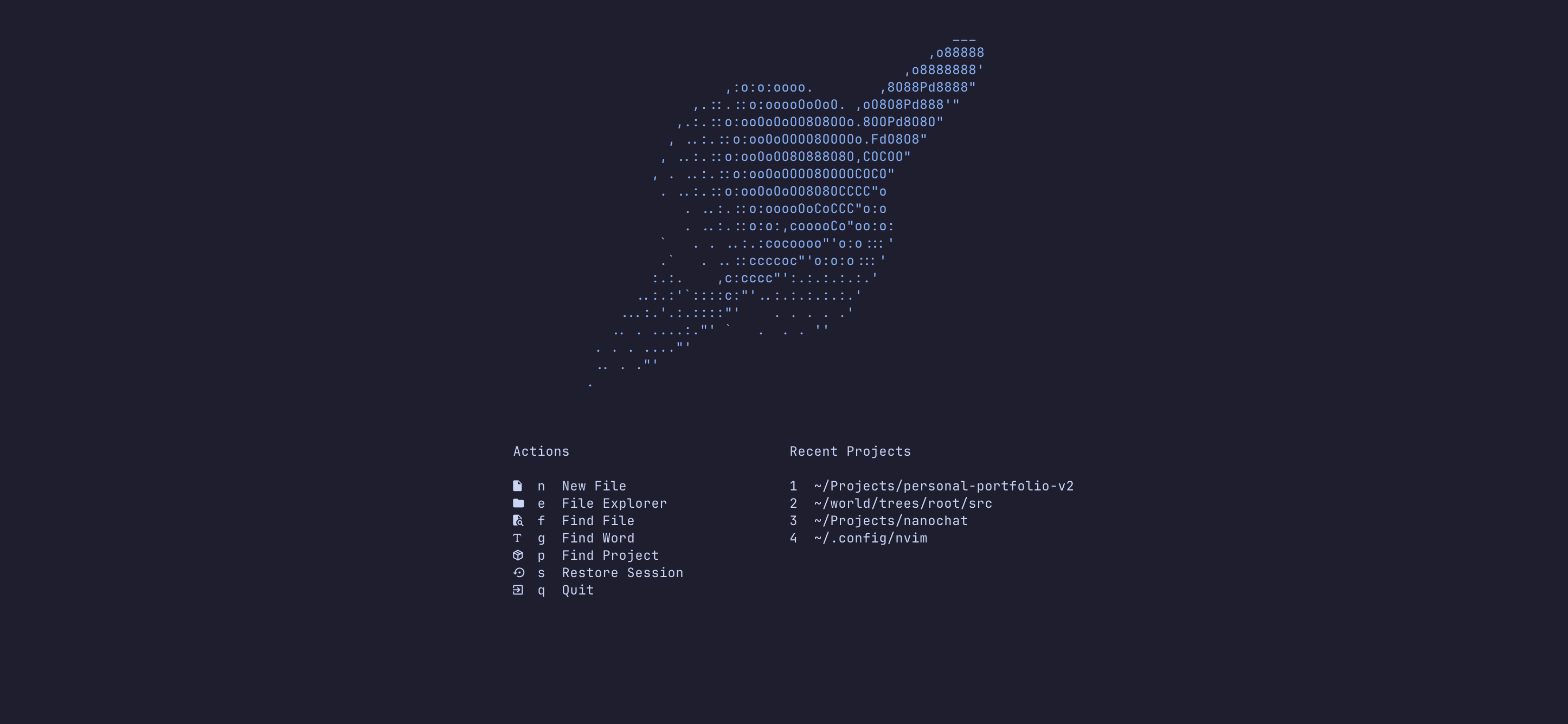
10. Dashboard (Alpha)
Alpha gives you a start screen when you open Neovim without a file. It shows quick-action shortcuts and your recent projects.
return {
  {
    "ahmedkhalf/project.nvim",
    config = function()
      require("project_nvim").setup({
        manual_mode = true,
        detection_methods = { "pattern", "lsp" },
        patterns = { ".git", "Makefile", "package.json", "Cargo.toml", "go.mod", ".project_root" },
        silent_chdir = true,
      })
    end,
  },
  {
    "goolord/alpha-nvim",
    event = "VimEnter",
    dependencies = { "ahmedkhalf/project.nvim" },
    config = function()
      local alpha = require("alpha")
      local theta = require("alpha.themes.theta")
      local dashboard = require("alpha.themes.dashboard")

      -- Header
      local header = {
        type = "text",
        val = {
          "                                                   ",
          "                                              ___  ",
          "                                           ,o88888 ",
          "                                        ,o8888888' ",
          "                  ,:o:o:oooo.        ,8O88Pd8888\"  ",
          "              ,.::.::o:ooooOoOoO. ,oO8O8Pd888'\"    ",
          "            ,.:.::o:ooOoOoOO8O8OOo.8OOPd8O8O\"      ",
          "           , ..:.::o:ooOoOOOO8OOOOo.FdO8O8\"        ",
          "          , ..:.::o:ooOoOO8O888O8O,COCOO\"          ",
          "         , . ..:.::o:ooOoOOOO8OOOOCOCO\"            ",
          "          . ..:.::o:ooOoOoOO8O8OCCCC\"o             ",
          "             . ..:.::o:ooooOoCoCCC\"o:o             ",
          "             . ..:.::o:o:,cooooCo\"oo:o:            ",
          "          `   . . ..:.:cocoooo\"'o:o:::'            ",
          "          .`   . ..::ccccoc\"'o:o:o:::'             ",
          "         :.:.    ,c:cccc\"':.:.:.:.:.'              ",
          "       ..:.:'`::::c:\"\''..:.:.:.:.:.'               ",
          "     ...:.'.:.::::\"\'    . . . . .'                 ",
          "    .. . ....:.\"\'  `   .  . . ''                    ",
          "  . . . ....\"\'                                     ",
          "  .. . .\"\'                                         ",
          " .                                                 ",
          "",
        },
        opts = { hl = "AlphaHeader", position = "center" },
      }

      -- (two-column layout with actions + recent projects)
      -- ... full dashboard config ...

      alpha.setup(config)
    end,
  },
}
The dashboard has two columns: actions on the left (new file, find file, grep, etc.) and recent projects on the right. Press the highlighted key to trigger each action. This uses project.nvim to track your project directories automatically. You can add anything you want here really, this is just an example.
Note: I've abbreviated the alpha config here since the full two-column layout code is fairly long. The key idea is: project.nvim detects your projects, and alpha displays them on the dashboard with keybindings to jump to each one.
11. Session Management
auto-session saves and restores your open buffers, splits, and cursor positions per project directory.
return {
  "rmagatti/auto-session",
  config = function()
    require("auto-session").setup({
      auto_restore_enabled = false,
      auto_save_enabled = false,
      auto_session_suppress_dirs = { "~/", "~/Dev/", "~/Downloads", "~/Documents", "~/Desktop/" },
    })
    vim.keymap.set("n", "<leader>wr", "<cmd>AutoSession restore<CR>", { desc = "Restore session for cwd" })
    vim.keymap.set("n", "<leader>ws", "<cmd>AutoSession save<CR>", { desc = "Save session for auto session root dir" })
  end,
}
Space wrrestore the session for the current directorySpace wssave the current session
I keep auto-restore and auto-save disabled so it doesn't interfere when I open Neovim for a quick edit. You can enable them if you prefer.
12. Extra Tools
return {
  -- Oil: edit filesystem like a buffer
  {
    "stevearc/oil.nvim",
    dependencies = { "nvim-tree/nvim-web-devicons" },
    keys = {
      { "<leader>o", "<cmd>Oil<cr>", desc = "Open Oil file manager" },
    },
    config = function()
      require("oil").setup({ view_options = { show_hidden = true } })
    end,
  },

  -- Markdown preview
  {
    "iamcco/markdown-preview.nvim",
    cmd = { "MarkdownPreviewToggle", "MarkdownPreview", "MarkdownPreviewStop" },
    ft = { "markdown" },
    build = "cd app && npm install",
    keys = {
      { "<leader>mp", "<cmd>MarkdownPreviewToggle<cr>", desc = "Toggle markdown preview" },
    },
  },
}- oil.nvim lets you edit your filesystem like a buffer. Open it with
Space o, rename files by editing text, delete by deleting lines. - markdown-preview live preview of markdown files in your browser. Toggle with
Space mp.
Core Config Files
These aren't plugins, they're plain Lua files that set up keymaps and diagnostics.
Keymaps
-- Split navigation
vim.keymap.set("n", "<C-h>", "<C-w>h", { silent = true })
vim.keymap.set("n", "<C-j>", "<C-w>j", { silent = true })
vim.keymap.set("n", "<C-k>", "<C-w>k", { silent = true })
vim.keymap.set("n", "<C-l>", "<C-w>l", { silent = true })

-- Splits (using <leader>s prefix to avoid conflicts)
vim.keymap.set("n", "<leader>sv", "<cmd>vsplit<cr>", { desc = "Split right", silent = true })
vim.keymap.set("n", "<leader>sh", "<cmd>split<cr>", { desc = "Split below", silent = true })
vim.keymap.set("n", "<leader>sc", "<cmd>close<cr>", { desc = "Close split", silent = true })

-- Buffers (tabs)
vim.keymap.set("n", "<Tab>", "<cmd>BufferLineCycleNext<cr>", { desc = "Next tab", silent = true })
vim.keymap.set("n", "<S-Tab>", "<cmd>BufferLineCyclePrev<cr>", { desc = "Previous tab", silent = true })
vim.keymap.set("n", "<leader>c", function()
  local buf = vim.api.nvim_get_current_buf()
  vim.cmd("BufferLineCyclePrev")
  vim.cmd("bdelete! " .. buf)
end, { desc = "Close tab", silent = true })

-- Clipboard: always yank to system clipboard
vim.keymap.set("n", "y", '"+y', { desc = "Yank to clipboard", silent = true })
vim.keymap.set("v", "y", '"+y', { desc = "Yank to clipboard", silent = true })
vim.keymap.set("n", "Y", '"+Y', { desc = "Yank line to clipboard", silent = true })
vim.keymap.set("n", "p", '"+p', { desc = "Paste from clipboard", silent = true })
vim.keymap.set("n", "P", '"+P', { desc = "Paste from clipboard before", silent = true })
vim.keymap.set("v", "p", '"+p', { desc = "Paste from clipboard", silent = true })

-- Clipboard (Cmd+C / Cmd+V for GUI/terminals that support it)
vim.keymap.set("n", "<D-c>", '"+y', { desc = "Copy to clipboard", silent = true })
vim.keymap.set("v", "<D-c>", '"+y', { desc = "Copy to clipboard", silent = true })
vim.keymap.set("n", "<D-v>", '"+p', { desc = "Paste from clipboard", silent = true })
vim.keymap.set("i", "<D-v>", "<C-r>+", { desc = "Paste from clipboard", silent = true })
vim.keymap.set("t", "<D-v>", function()
  local clipboard = vim.fn.getreg("+")
  vim.api.nvim_feedkeys(vim.api.nvim_replace_termcodes(clipboard, true, true, true), "t", false)
end, { desc = "Paste from clipboard", silent = true })

-- Format
vim.keymap.set("n", "<leader>lf", function() vim.lsp.buf.format({ async = true }) end, { desc = "Format file", silent = true })
vim.keymap.set("v", "<leader>lf", function() vim.lsp.buf.format({ async = true }) end, { desc = "Format selection", silent = true })

-- Terminal
vim.keymap.set("n", "<leader>th", "<cmd>belowright split | terminal<cr>", { desc = "Terminal below", silent = true })
vim.keymap.set("n", "<leader>tv", "<cmd>belowright vsplit | terminal<cr>", { desc = "Terminal right", silent = true })
vim.keymap.set("t", "<Esc>", "<Esc>", { silent = true })
vim.keymap.set("t", "<C-n>", [[<C-\><C-n>]], { silent = true })
vim.keymap.set("t", "<C-h>", [[<C-\><C-n><C-w>h]], { silent = true })
vim.keymap.set("t", "<C-j>", [[<C-\><C-n><C-w>j]], { silent = true })
vim.keymap.set("t", "<C-k>", [[<C-\><C-n><C-w>k]], { silent = true })
vim.keymap.set("t", "<C-l>", [[<C-\><C-n><C-w>l]], { silent = true })
Highlights:
- Split navigation
Ctrl+h/j/k/lto move between splits (works in terminal mode too). - Buffer tabs
Tab/Shift+Tabto cycle,Space cto close. - System clipboard yank and paste always use the system clipboard. No more
"+y. - Format
Space lfto format the current file or selection via LSP. - Terminal
Space thfor a horizontal terminal,Space tvfor vertical.
Diagnostics
-- Diagnostic signs in the gutter
local signs = { Error = " ", Warn = " ", Hint = " ", Info = " " }
for type, icon in pairs(signs) do
local hl = "DiagnosticSign" .. type
vim.fn.sign_define(hl, { text = icon, texthl = hl, numhl = "" })
end
-- Inline virtual text and floating windows
vim.diagnostic.config({
virtual_text = { prefix = "●" },
signs = true,
underlines = true,
update_in_insert = false,
severity_sort = true,
float = { border = "rounded", source = true },
})
-- Highlight error/warning lines with a tinted background
vim.api.nvim_set_hl(0, "DiagnosticLineError", { bg = "#2d0000" })
vim.api.nvim_set_hl(0, "DiagnosticLineWarn", { bg = "#2d2600" })
vim.api.nvim_create_autocmd("DiagnosticChanged", {
callback = function()
local ns = vim.api.nvim_create_namespace("diagnostic_lines")
for _, buf in ipairs(vim.api.nvim_list_bufs()) do
if vim.api.nvim_buf_is_valid(buf) then
vim.api.nvim_buf_clear_namespace(buf, ns, 0, -1)
end
end
local buf = vim.api.nvim_get_current_buf()
local diagnostics = vim.diagnostic.get(buf)
for _, d in ipairs(diagnostics) do
local hl = d.severity == vim.diagnostic.severity.ERROR and "DiagnosticLineError"
or d.severity == vim.diagnostic.severity.WARN and "DiagnosticLineWarn"
or nil
if hl and d.lnum < vim.api.nvim_buf_line_count(buf) then
vim.api.nvim_buf_set_extmark(buf, ns, d.lnum, 0, { line_hl_group = hl, priority = 1 })
end
end
end,
})This sets up custom diagnostic icons in the gutter (with Nerd Font symbols), enables inline virtual text with dot prefixes, and adds a tinted background highlight on lines with errors (red) or warnings (yellow) so they're impossible to miss.
That's It
You now have a fully configured Neovim setup with LSP, autocompletion, fuzzy finding, git integration, and a clean UI.
The best part about Neovim is that it's endlessly customizable. Use this as a starting point, poke around, break things, fix them, and do what you want really.
You can also check out the full config repository here, or just clone it directly into your config directory:
~ $ git clone https://github.com/alvina-yang/NeoVim.git ~/.config/nvim